Preview changes shows what a task or sale will do before it changes anything. The app finds the products your settings select and calculates each new price, compare at price, cost and market price, without writing anything to your store. If the prices look right, you start it. If not, you edit or discard it.
Fill in the New task or New sale form as usual.
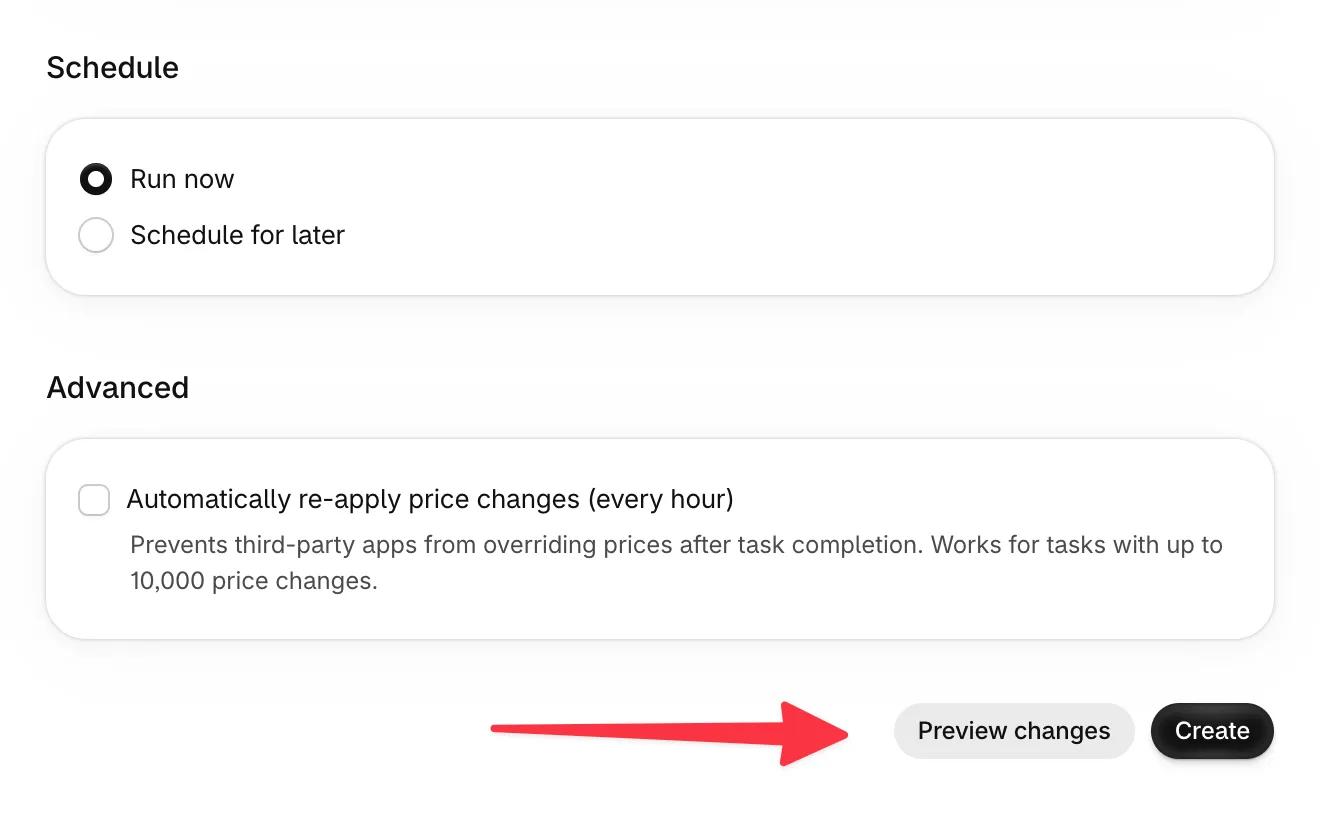
Click Preview changes instead of Create.
Wait while the page shows Preparing preview. As soon as the products are found, the New prices list shows them, and their new prices fill in as they are calculated.
Check the summary under What this task will change (or What this sale will change) and the New prices list. Search by product name, and click Details to see every variant of a product.
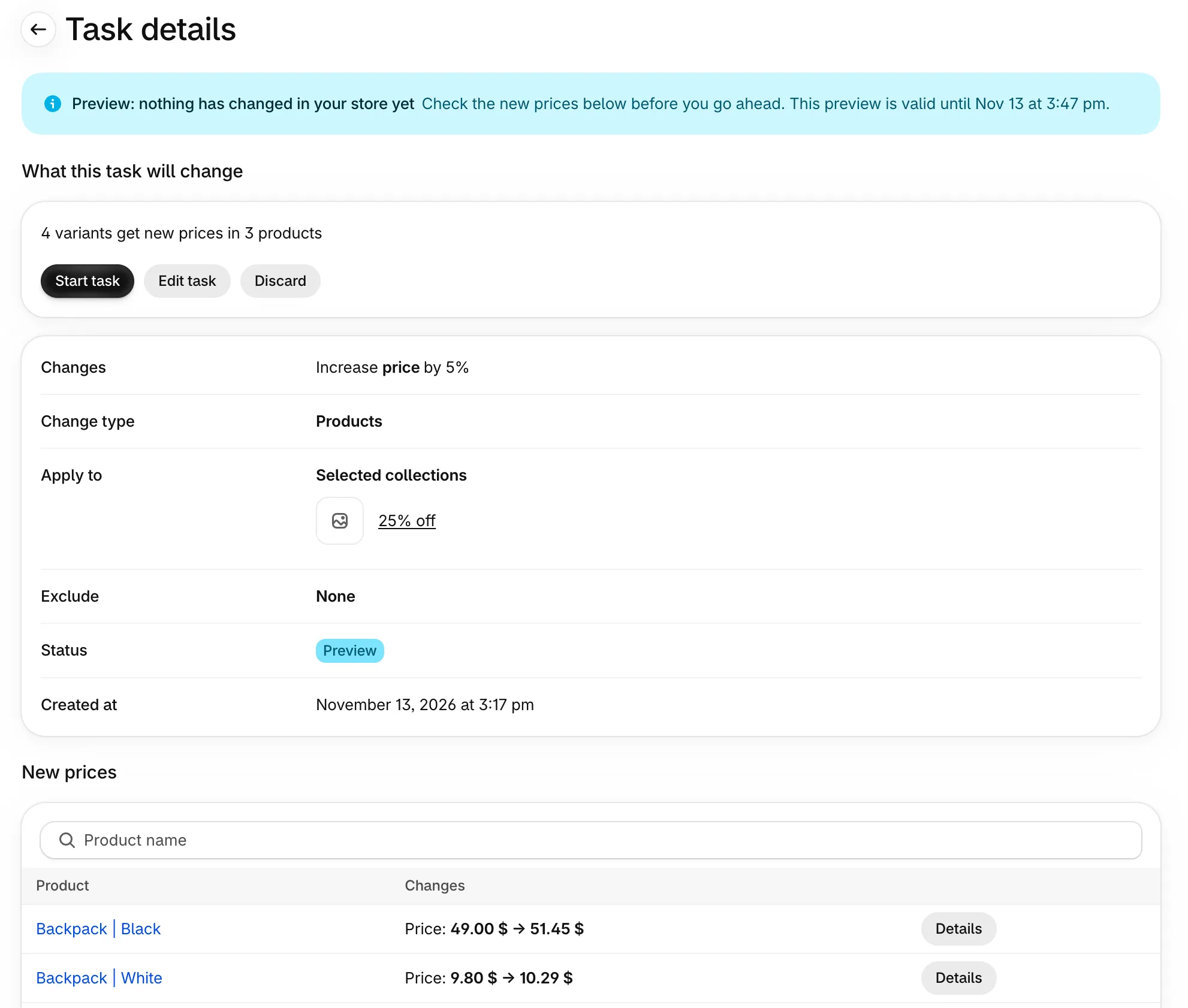
Click Start task or Start sale. For a task or sale that starts later, the button says Schedule task or Schedule sale.
If the result is not what you expected, click Edit task or Edit sale to reopen the form with the same settings, or Discard to drop the preview. Both work at any point, including while the preview is still preparing.
Most previews are ready within seconds. Very large selections take longer, and cost, margin and market price changes take longer to calculate than other changes. While prices are calculated, the page shows Calculating new prices with its progress, and Start appears once every price is ready.
The summary counts variants, not products:
Variants that get new prices. These are the prices the task or sale writes when you start it.
Variants that keep their price. The new price comes out the same as the current one, for example because of rounding or the minimum price.
Variants left out because another sale discounts them. A sale does not discount a variant that another active sale already discounts.
Skipped products. Products the task or sale finds but cannot change, for example a product without a fixed price in a market when Apply changes only to fixed prices is on.
If no price would change, the summary says so. Edit the task or sale to change its settings.
A preview shows prices as they are now, so it expires after 30 minutes. After that, Edit task or Edit sale reopens the form with your settings so you can preview again. A preview that expired or was discarded never changed anything.
If another task or sale changes some of the same prices after your preview, Start is refused and asks you to preview again, so the prices you start with are the ones you checked.
You can preview a task or sale that starts later. The preview calculates new prices from today's prices. When it starts, it reads your prices again and changes the products that match at that moment, so the result can differ if your prices or products change in the meantime.
A preview shows This preview stopped with the reason when the selection has more products than your plan allows in one task or sale, when the selected collections or products no longer exist in Shopify, or when Shopify could not export the products. Use Edit to change the selection or try again, or Discard. For the product limit, Upgrade plan is also available.
A preview does not count toward the Free plan's monthly tasks and sales until you start it. Discarded and expired previews never count. If you have used this month's tasks or sales, Start is refused until next month or until you upgrade. See plan limits.
Nothing changes in your store until you click Start. A preview does not write prices, tags or market prices.
Previewing does not hold up your other tasks and sales. They keep running while you review a preview.
For a sale with Track changes in condition automatically (every hour), the preview shows the products that match now. Products can join or leave the sale after it starts, as usual.
Editing an existing task or sale has no preview. Preview changes is on the New task and New sale forms. To preview a change to a scheduled task or sale, duplicate it, preview the copy, then cancel the original.
A preview shows calculated prices, not how your storefront displays them. To check the storefront, test one product first.